
Where can we stash a spare tyre in a Tesla for a road trip?
Tesla, and many other car manufacturers, don’t include a spare tyre, or a dedicated place to store one. Tesla encourages owners to just ask for help via the Tesla app, if they get stuck somewhere with a flat tyre. The response time and service is reportedly pretty good.
But, what if you’re going to drive well off the beaten track, and want to keep a spare tyre with you? Where do you put it?
Links
Watch on YouTube:
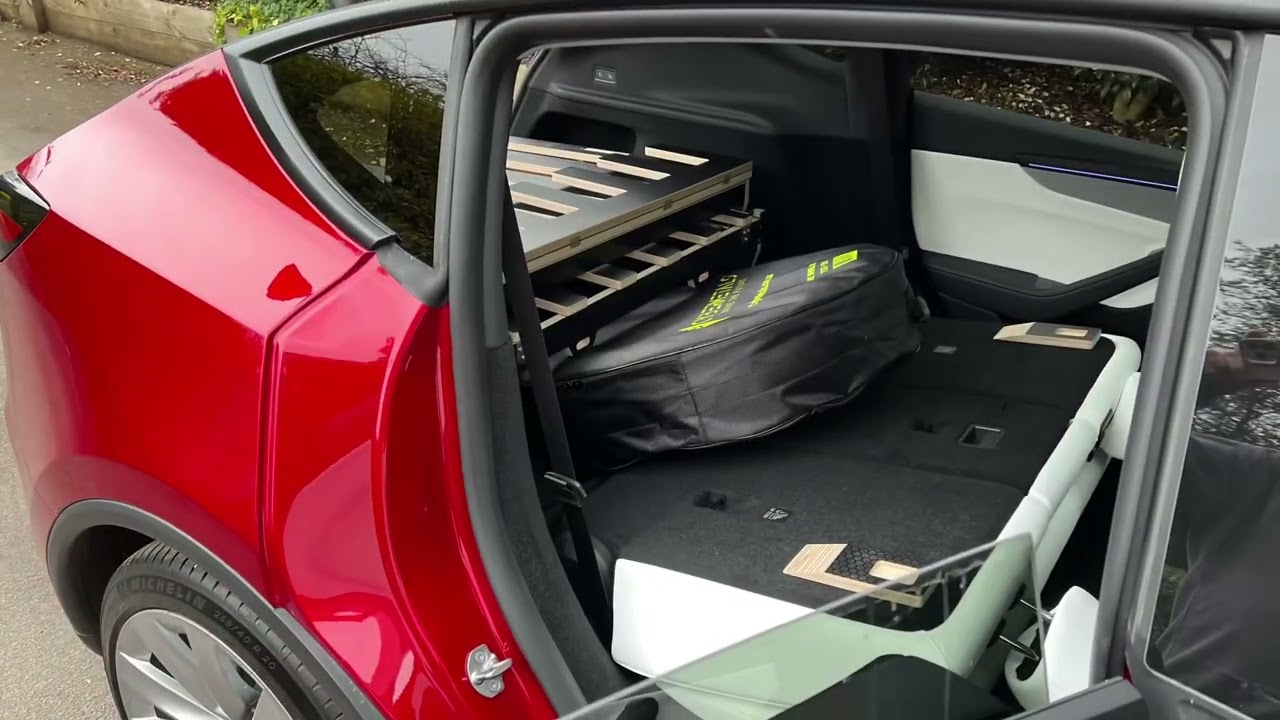 youtu.beWhere can we stash a spare tyre in a Tesla for a road trip?
Report
Report
I copied a frame design I found on a YouTube video. Works very well and still allows room in the boot for my fridge and all my work gear.
Report
This might help ? (Apparently the setting isn’t available via mobile app only via a laptop or desktop)
To allow photo comments on your Facebook page, you need to adjust the page settings to enable visitors to post photos and videos. Here’s how to do it:
1. Access Page Settings:
• Go to your Facebook Business Page using a desktop or laptop (this setting is not available on the mobile app).
• Click on Settings at the top right of the page.
2. Navigate to General Settings:
• In the left-hand menu, ensure the General tab is selected.
3. Enable Visitor Posts:
• Locate the Visitor Posts section (usually second from the top).
• Click Edit on the right side of this section.
• Select the option Allow visitors to the Page to publish posts. This setting enables visitors to post photos and videos, including in comments, on your page.
4. Optional: Enable Post Review:
• To moderate posts and prevent spam, you can also check Review posts by other people before they are published to the Page. This allows you to approve photos or videos before they appear.
5. Save Changes:
• Click Save Changes to apply the settings.
Note: There is no specific setting labeled “enable photo commenting” in Facebook’s interface. Allowing visitors to publish posts generally enables photo and video comments as well. If you still see an error like “Photo comments on this page are not allowed,” ensure the above setting is correctly enabled, as this is the primary workaround based on available information.
If you encounter issues, double-check the settings in Meta Business Suite or ensure no moderation filters are blocking image uploads. For further assistance, you can refer to Facebook’s Help Center at https://www.facebook.com/help.
Report
Report
Report